An AI assistant for your dashboard, days of the week and make-up classes: what's new on Enrichment.kids
 Jessie Feller
In early November we wrote about payment plans, pickup lists and before and after care. Here's what we've shipped since, and one thing we haven't told you about yet: you can now run your Enrichment.kids account by talking to an AI assistant.
Everything below is live now and included in your current plan.
Ask your AI assistant to do it
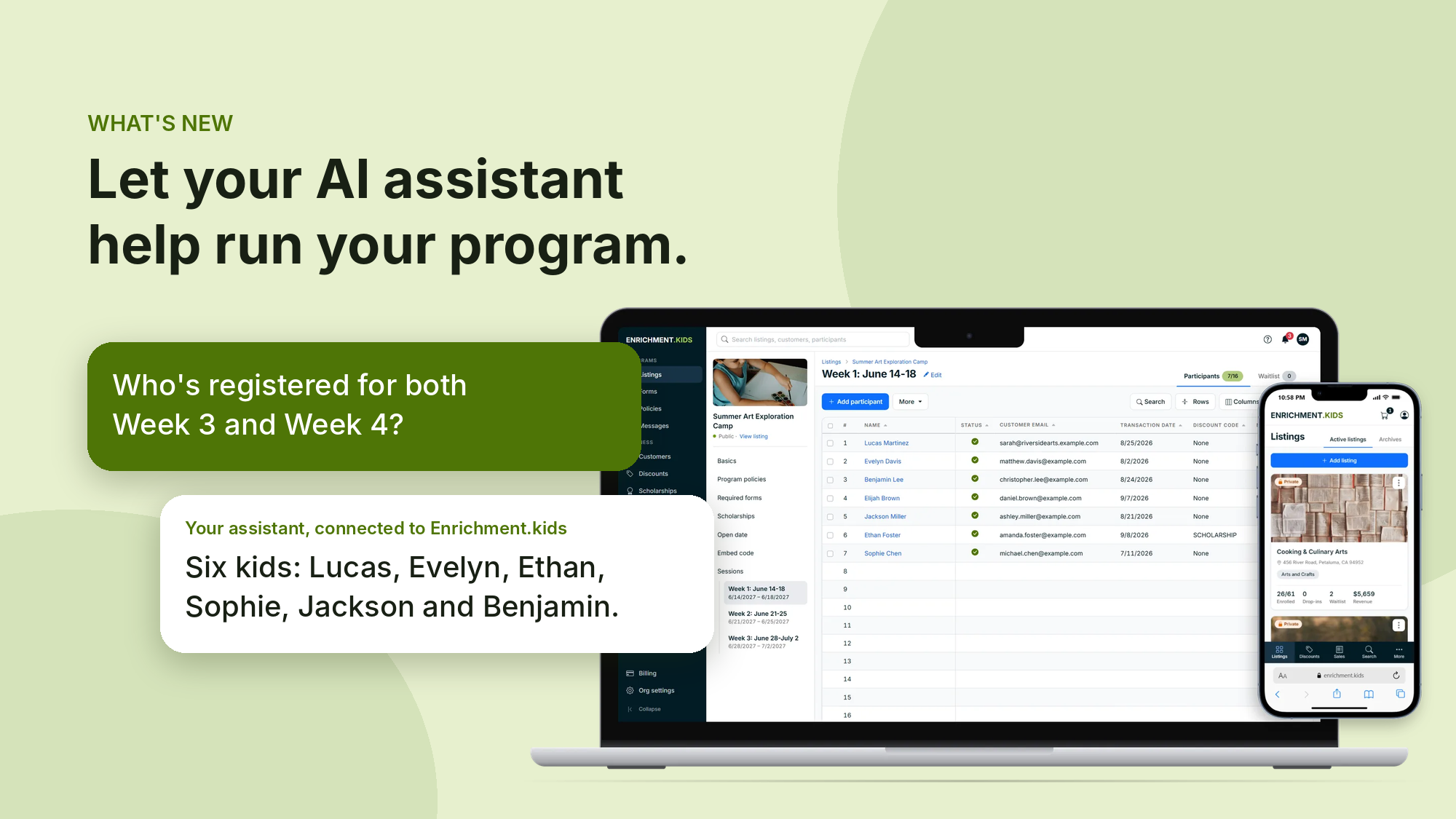
If you use Claude or ChatGPT, you can connect it to your Enrichment.kids dashboard. Once it's connected, you ask in plain words and it answers from your real rosters, forms, customers and reports, or does the work for you.
A few things providers ask it:
- "Who's registered for both Week 3 and Week 4?"
- "Move Ava from Tuesday Art Studio to Thursday."
- "Email Week 3 families the packing list."
- "Add weeks 2 through 8 of Summer Art Camp, same as week 1."
- "Add after care until 6 pm for $15 a day."
- "How much did we bring in last month, after fees?"
- "Make a printable allergy list for each session."
It works from your phone as well as your laptop, so you can check a roster from the field or the pickup line.
A few things to know:
- You sign in with your Enrichment.kids account. There's no API key to copy. The account owner connects it, and the assistant works in the account as the owner.
- Some things stay in your dashboard. Refunds, cancellations, team changes and taking attendance are done there, not through the assistant.
- It costs nothing extra. The connector is included in every Enrichment.kids plan.
To set it up, open AI for providers and follow the step-by-step guide. It takes a few minutes.
Sell your program the way it actually runs
Days of the week. In a weekly session, families now choose which days their child comes. You set a price for each number of days a week, flat-rate or monthly, and seats are counted day by day, so a full Tuesday doesn't close your Thursday. You can change a child's days later, and families can ask you to.
Day-only sessions. Sell a session only by the day, with no full-session seat at all. It's a good fit for drop-in programs and open studio time.
Make-up classes. When a child misses a meeting, an owner or admin can give them a free seat on another date. The make-up shows on that day's roll, and you can cancel it if plans change.
A seat limit per participant. Cap how many full sessions one child can hold in a listing at a time, so one family can't take every spot on opening day.
Sessions at their own address. A session can meet somewhere other than its listing, and that address shows wherever the session's location does.
Half-year ages. Age ranges can count in half years, for toddler programs where 2 and 2½ are very different classes.
Waitlist-only drop-in days. A drop-in day with no seats left stays listed and takes waitlist sign-ups instead of disappearing.
Let the routine run itself
Automations. Set a rule once and it runs for every registration it reaches. Send a welcome message when someone registers, a packing list (with up to three files attached) a few days before the first meeting, or a form request when a session starts. An activity log shows what went out and when.
Form requests stay open longer. Every form request now stays open until 30 days after a session's last meeting, so late paperwork still has a home.
Formatted messages. Messages to your families keep their bold, italics, lists and links.
Waitlist notices in one step. Select the families on a waitlist and tell all of them about open spots at once.
Meeting days in emails. Invite and registration emails now name the days a weekly session meets, and your roster shows them too.
Run the day from one screen
One roll across sessions. If several sessions meet on the same day, you can take one combined roll. You can also open the roll for a day still to come, and the roster has an Attended column.
Birthdays where you need them. A child's birthday shows in their drawer and wherever form answers appear, and each roster says whether checkout checks age.
Invite links on the roster. An open invite opens from the roster with its registration link ready to copy, for the family who says they never got the email.
Receipts from the drawer. Download a registration's receipt, with its before or after care on it, without leaving the roster.
Keep your team and your books in order
Staff don't see money. No screen shows staff a dollar figure, admins don't see revenue summaries, and only owners can give someone the Finance role.
Session tags. Tag sessions the way you think about them (by site, season or coach), and see them on your rolls and in a Tags column on the Sales Report, alongside your listing tags.
Your names for your customers. Correct or add a customer's name for your own pages without changing their account.
The annual Pro Plan, in one step. Owners on the Pro Plan sign the yearly agreement and pay the first year together, then manage renewal from Billing.
Getting started
Every feature above is explained in the Help Center. If you'd like us to walk you through any of it before your next session, including connecting your assistant, just reply to any of our emails or book a time with us.